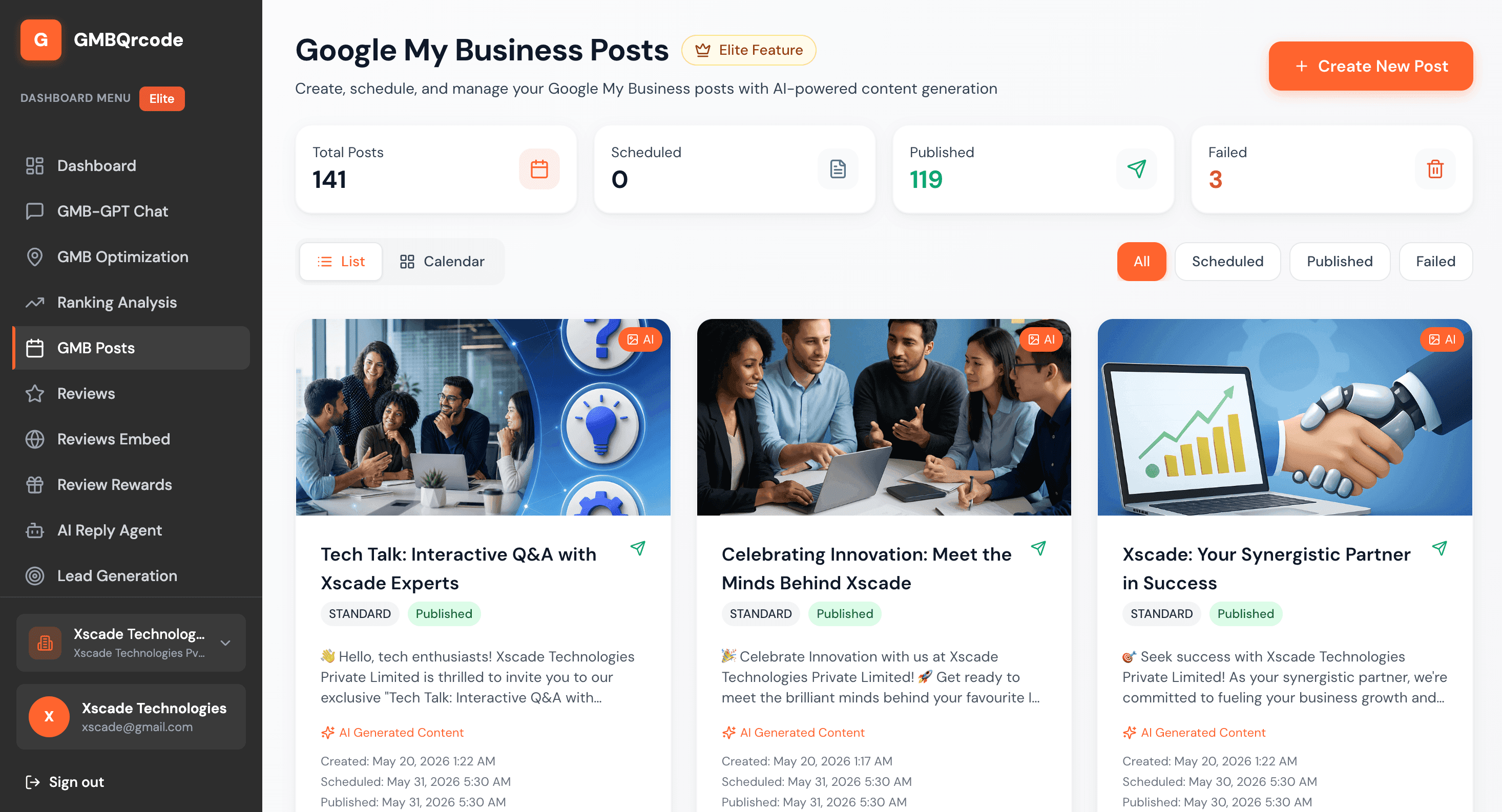
Why schedule Google Business Profile posts?
Posts are the part of your Business Profile you control week to week. They show up on your profile in Google Search and Maps, they let you announce an offer or event without editing your listing, and a steady stream of them shows people that the business is open and active.
The hard part is keeping it going. Most businesses post a few times and then stop when things get busy. Writing a batch of posts in one sitting and letting them go out over the month fixes that.
What Google supports today
According to Google’s help page on Business Profile posts, you can publish three kinds of post:
- Updates: general news with text, a photo or video and an optional button. GMBQrcode calls these standard posts.
- Offers: a sale or promotion with a title and dates, and optionally a coupon code, a link and terms.
- Events: something happening at a set time, with a title and start and end dates.
Google reviews every post against its content policies before it goes live, and archives posts older than six months unless they have a date range.
Google’s own editor can now schedule a post, repeat it, and share it to several profiles at once. If you only need to queue a post you have already written, that is free and built in. GMBQrcode is for the writing: it drafts the text and the image for you, and can fill a whole month of posts at once.
How the GMBQrcode post scheduler works
- 1
Connect your Google Business Profile
Sign in with the Google account that manages your profile. GMBQrcode publishes posts through Google’s Business Profile API, so posts appear as if you had added them in Google yourself.
- 2
Pick a day on the calendar
Open GMB Posts and switch to the calendar. Click a day, or use Create New Post, and choose the post type: standard update, event or offer.
- 3
Write the post, or let AI draft it
Describe what you want to say and AI writes the post text from your business details. Edit it freely. Then generate an image with AI or upload your own photo.
- 4
Add a button and the details for the post type
Add an optional button: Learn more, Book, Order, Shop, Sign up or Call now. Events take a title and start and end dates. Offers take a coupon code, a redeem link and terms.
- 5
Set the date and time
Choose when the post should go live and save it. A scheduler checks every few minutes and publishes posts that are due. The calendar then marks the post published, or failed with Google’s error message so you can fix and retry it.
AI drafting, and where you stay in control
When you create a post, AI drafts it from what you type and from your business profile in GMBQrcode: your name, services and description. Nothing is published until you save the post with a date, and you can rewrite any line first. Images work the same way: describe the picture you want, or upload your own.
Monthly auto-fill goes further. Press Auto-fill on the calendar and GMBQrcode picks content themes for your business, writes one standard post with an image for each open future day in the month, and adds them as scheduled posts. It looks at your recent posts so it does not repeat itself. On the Elite plan this also runs automatically each night, so open days later in the month get a post too.
Auto-filled posts are scheduled, not held for approval. They publish on their dates unless you change them. Go through the calendar after a fill and edit anything that is not right for your business before its date.
Posting for more than one location
Each location is its own business in your GMBQrcode account. Add them, connect each to its Google profile, and switch between them from the business switcher. Every business has its own calendar, its own auto-fill and its own plan, so a chain can run posts for each branch without mixing them up.
Plan and price
The post scheduler, AI drafting and monthly auto-fill are part of the Elite plan. Elite: ₹1,249 a month or ₹11,990 a year. Prices for other currencies are on the pricing page. The free plan covers the review QR code, AI-drafted reviews and the website reviews widget, so you can start there and upgrade when you want posting handled.